Tidy Your Digital Files Without Starting Over
Compare three low-disruption ways to make everyday files easier to find, from gradual cleanup to a single working folder.
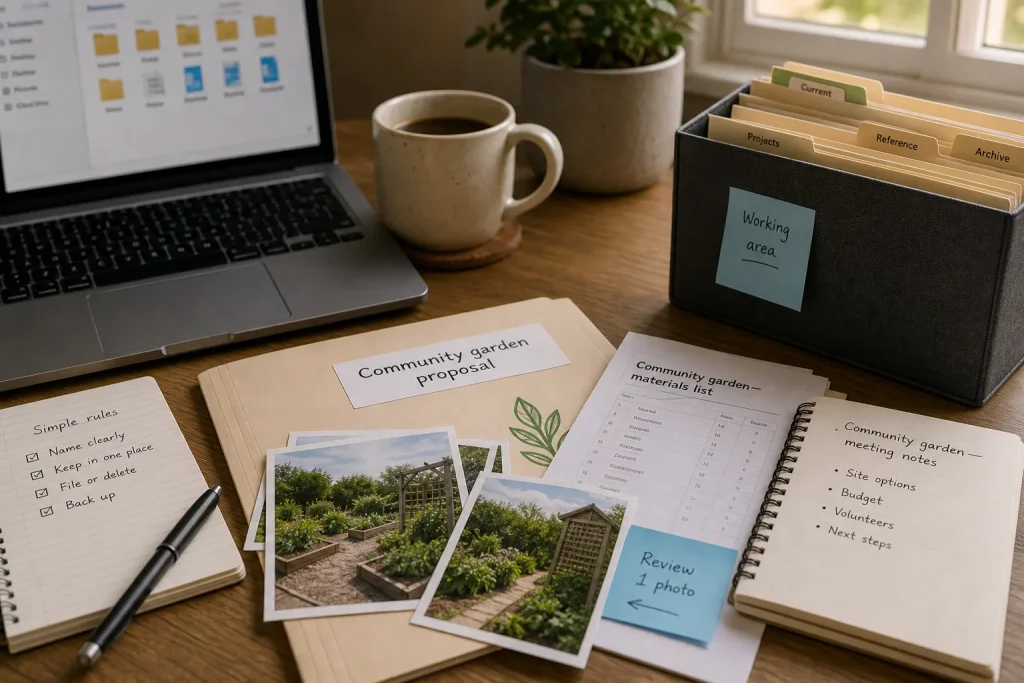
When a meeting begins in a few minutes, the right document can seem to vanish among downloads, old drafts, and folders with names like “New folder.” A full cleanup may sound like the answer, but it can also become a separate project that never gets finished. A better approach is to choose a small, repeatable change that improves the files you reach for most.
There are three useful ways to begin: tidy files as you encounter them, create one clear working area, or sort a defined collection in a focused session. Each has a different balance of effort and order. None requires moving everything at once.
Rename files as they come into view
The gradual approach changes a file when you open, save, or share it. Instead of launching a broad cleanup, give that document a name you can recognize later and place it in a sensible existing folder. A name such as “Notes” can become “Garden meeting notes” or “Laptop repair receipt,” depending on what the file contains.
A useful filename answers the questions you are likely to ask in search: what is this, and what distinguishes it from similar items? For recurring work, a simple pattern might put the subject first and the document type after it, such as “Kitchen refresh—materials list.” Dates can help when versions or events need to be distinguished, but they do not need to appear in every name.
This method suits people whose folders are usable but whose filenames are vague. It also works well when work arrives in a steady flow, such as downloaded forms, meeting notes, or images saved from a phone. The main advantage is modest effort at the moment of use. The drawback is that improvement accumulates slowly, and untouched corners remain untouched.
Keep the naming rule plain enough to remember. Avoid building a private code that depends on memory, and do not rename a file while a shared link, automated process, or colleague may rely on its current name. If a document is shared, consider coordinating the change or leaving a clear pointer where appropriate.
Create a working area for current files
A second option is to establish one small landing place for active material. This could be a folder called “Current,” “To file,” or “Active projects” inside Documents. Put only files you are using or need to process there, then move each one to a more durable home when the task is complete.
This approach suits someone who saves files quickly and loses track of them before deciding where they belong. It also helps when several devices or applications scatter recent work across Downloads, Desktop, and cloud storage. A single working area reduces the number of places to check, without requiring an immediate decision about every old item.
The tradeoff is that a landing folder can become another pile. Set a small rule for its use: when you finish a task, either file the document, delete it if it is plainly disposable, or leave it in the working area with a reason to return to it. For files that may matter, do not delete them merely because they are old. Keep a backup and follow any workplace or personal retention requirements that apply.
Cloud services such as Google Drive, iCloud Drive, or OneDrive can make a working area available across devices, but it is worth confirming which location is syncing and which files are stored locally. A folder visible in an app is not always evidence that a separate backup exists. For important material, use the backup method provided by your service or device and check that it covers the files you intend to protect.
Sort one bounded collection at a time
A focused session can bring order to a specific place, such as the Downloads folder, a camera-import folder, or one project directory. Set a narrow boundary before beginning: one folder, one kind of file, or one project. Then group items by a distinction that helps you retrieve them, such as project, document type, or year. Stop when that collection is usable rather than extending the work to every drive and account.
This method suits people who prefer a visible result and can spare attention for a contained task. It is particularly useful when a folder has accumulated many near-duplicates or files with generic names. Its risk is scope creep: opening old archives and nested folders can turn a tidy session into a prolonged review of material with unclear value.
Use a temporary “Review” folder for items whose purpose is uncertain, rather than scattering them or making a rushed deletion decision. For duplicate files, compare their contents and context before removing anything; filenames alone may not reveal which copy is current. If a folder contains business, legal, or other consequential records, follow the relevant retention rules or ask a qualified professional rather than relying on a general tidying rule.
Choose by the kind of friction you notice
Choose gradual renaming if you can usually locate the right folder and the trouble is remembering which file is which. Choose a working area if new files land in several places and disappear from view. Choose a bounded sorting session if one specific collection is already difficult to use and you want to improve that area directly.
You can combine the approaches without combining their workloads. For example, create a working area for new material, rename files when you open them, and reserve a short session for one troublesome folder when it becomes worth addressing. A consistent small rule is more useful than a grand system that asks you to reorganize everything before it helps.
Hypothetical worked example: a scattered project folder
Imagine a person preparing a community garden proposal. Their starting point is a Documents folder containing a vague file called “notes,” a materials list in Downloads, and several photographs saved from a phone. They need a clear proposal folder but do not want to reorganize unrelated personal files.
They create “Community garden proposal” inside Documents, move the materials list there, and rename it “Community garden—materials list.” They rename the notes file “Community garden—meeting notes,” then place the relevant photographs in a “Site photos” subfolder. One image has an unclear date and may be useful, so they leave it in a “Review” folder rather than guessing. They also check that the proposal folder is included in the backup location they already use.
The expected result is a project folder with recognizable documents and a clearly separated question to revisit. The tradeoff is that the ambiguous photograph remains unresolved, and unrelated files stay where they are. That is a deliberate limit, not a failed cleanup: the next action is attached to a real need, and the rest of the file system can improve at its own pace.
When a file is hard to find, notice which part caused the delay: its name, its location, or uncertainty about whether it still matters. Fix that one cause the next time the file is in hand. Over time, a modest habit of naming and placing files at the point of use can make a familiar collection easier to search without asking you to start over.